
An owner or office account assigned to the correct driving school. Instructor and student accounts do not grant administrative access.
Follow these steps
Sign in as the school
Open OSK staff sign-in. Enter Email and Password, then select Sign in. If the centre chooser appears, select the school you intend to work in.
Verify the school name
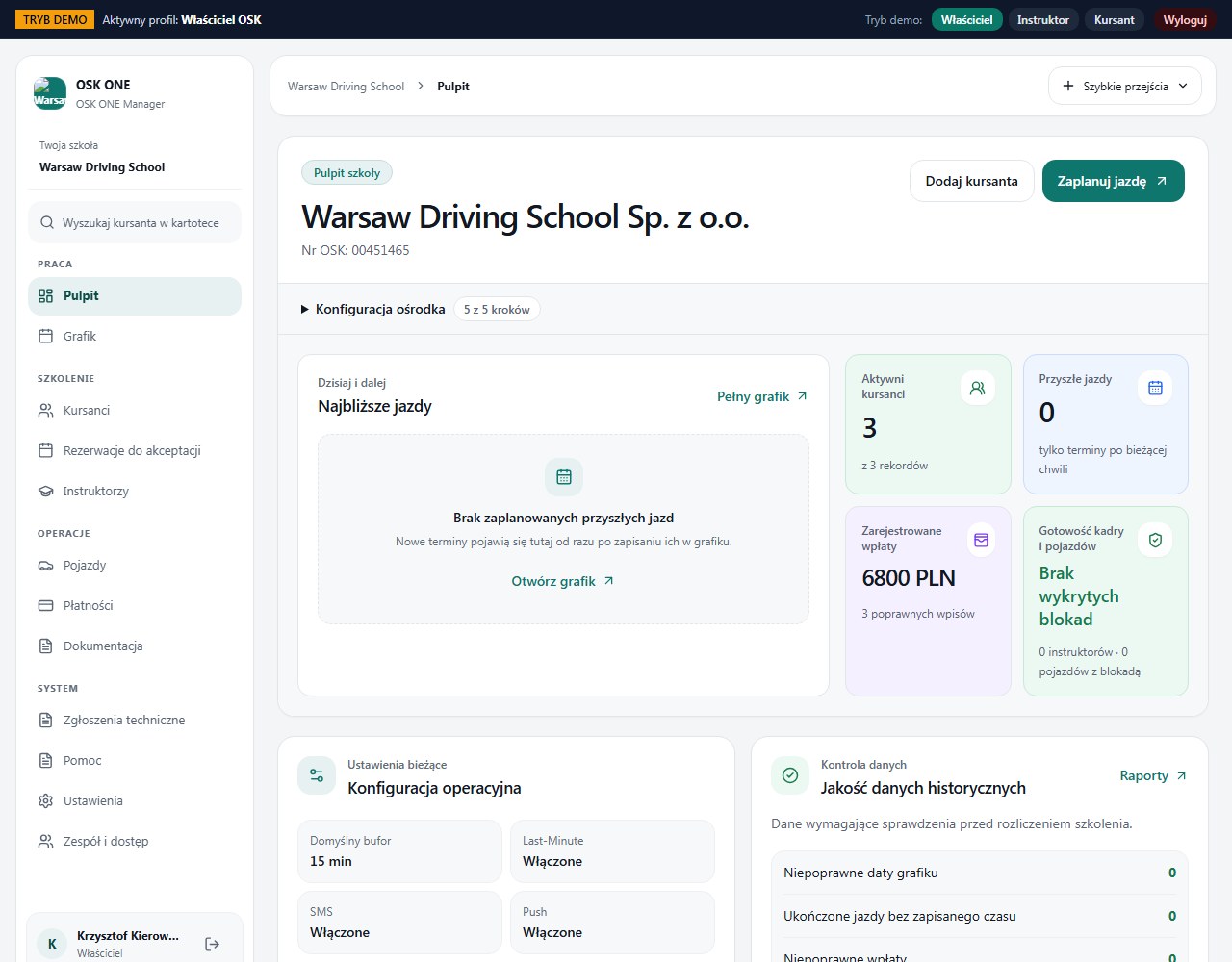
On the Dashboard check the school name and your account. Do not enter data if you are signed in to the wrong organisation.
Prepare core data
In Settings verify School data. Then add instructors and vehicles, and in Students create the student together with the course.
Set availability and planning mode
In Schedule save instructor working hours. Then choose one path: schedule a specific lesson or publish slots for student self-booking.
Verify the first lesson
Open the saved lesson in Schedule. Compare student, instructor, vehicle, date/time and pickup point. Ask the instructor and student to verify their own views.
How to verify it worked
You know which school you are signed in to and have the data needed to schedule lessons. A green Dashboard card does not replace verification of the first lesson.
DEMO role-switch buttons are for demonstration only and do not grant permissions in a real school.
Forgot password starts password recovery. Do not create a second account to bypass a problem with the existing one.