
Instructor details, licence number, categories, medical/psychological/workshop dates and the correct email address.
Follow these steps
Add the person to staff
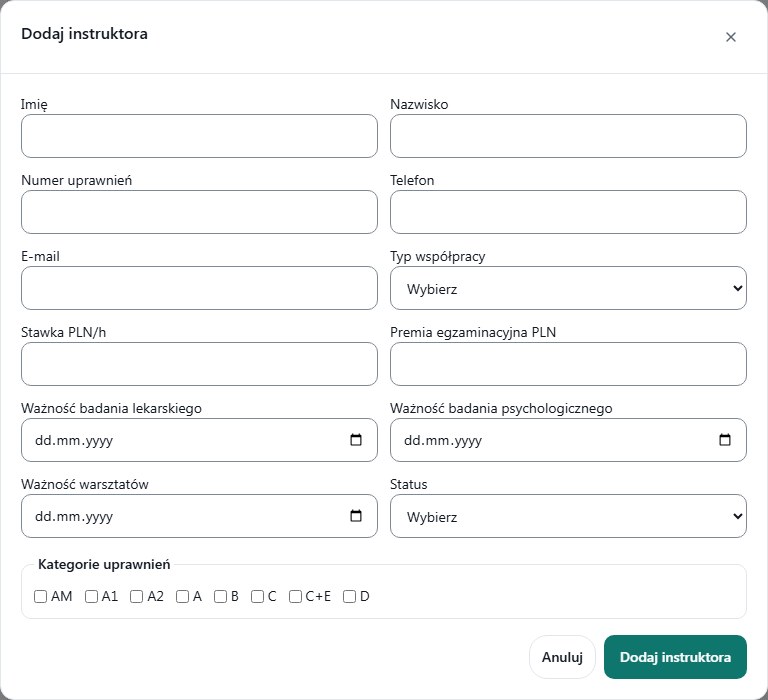
Choose Instructors, then Add instructor. Enter first name, last name, licence number, phone and email.
Complete operational data
Enter the real medical, psychological and workshop dates. Select licence categories and the correct status. Do not invent dates just to remove a warning.
Save the staff record
Complete required cooperation fields and submit Add instructor. Verify the new row in the list.
Prepare the account
Open Manage instructor accounts. Check whether the person already has an active account, pending invitation or missing data. Do not create a second access for the same person.
Deliver access securely
When generating an invitation, copy the displayed link and send it only to that instructor. Do not paste it into public support. After acceptance verify the account status, then configure working hours.
What to enter and what it means
- The address the instructor will use for activation and sign-in.
- Licence categories
- Select only categories actually held; the correct category B qualification is needed for V1 lessons.
- Status
- Active or Inactive. An active staff record does not automatically mean an activated account.
- Rate / bonus / cooperation type
- Cooperation data for the instructor, not the course price or a payment collected from the student.
How to verify it worked
The instructor exists in staff, has the correct email, and the account is unambiguously linked to that record.
Missing email or an inactive instructor can block an invitation. Correct the existing record rather than creating another person.
Invitation links expire. For an expired invitation, issue a new one from the office.