
Student details, their real PKK number, confirmed theory pathway and agreed course parameters. Search for the person first to avoid duplicates.
Follow these steps
Open the form
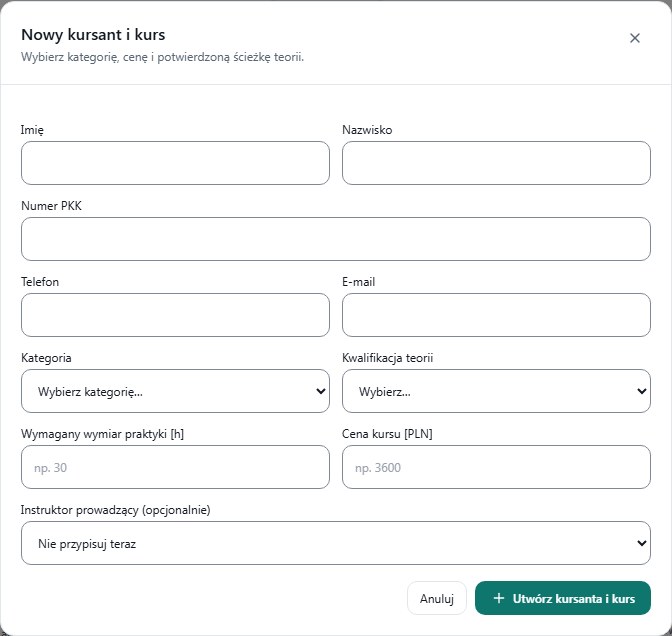
Choose Students, then Add student and course. The New student and course dialog opens.
Enter personal details
Fill in first name, last name, PKK number, phone and email. Copy the PKK from the student's documentation; do not guess missing digits.
Set course data
Choose category B and the actual theory qualification. Enter required practice hours and the agreed course price.
Assign the lead instructor
In Lead instructor (optional), choose the correct person or leave Do not assign now. Lead instructor and instructor for a specific lesson are separate assignments.
Save and verify the record
Select Create student and course. After confirmation, find the person and open their record. Verify that the expected course is present.
What to enter and what it means
- First name, last name, phone, email
- Contact details for the person. The email address must belong to that student.
- PKK number
- The real number from the documentation; fix any format error in this field.
- Theory qualification
- Theory at the driving school or theory passed earlier at WORD — only according to confirmed status.
- Required practice [h]
- Enter hours, not minutes. For example 30 means 30 hours, not 1800.
- Course price [PLN]
- The agreed price for this course. A sample amount shown in a form is not the school's price list.
How to verify it worked
The directory contains one correct person with the course saved. If there are several courses, open the student record and select the one relevant to the lessons.
Could not confirm save does not prove that nothing was saved. Refresh the directory and search for the person first.
No enrolment and Several courses — choose in record are different states. Do not add another person to solve course selection.