
Identify what is missing: the whole course, one lesson or selectable slots. Note the exact message.
Follow these steps
Check account and school
Compare your account, school name and selected course. If you have several courses, switch to the correct one. If the school is absent, ask the office to verify the connection.
Separate no booking from pending state
Open history and your appointments. Pending, rejected or expired requests are not confirmed future lessons.
Check list and filters
For free slots remove instructor or slot-type filters. An empty list may mean the school has not published slots, not that the account is broken.
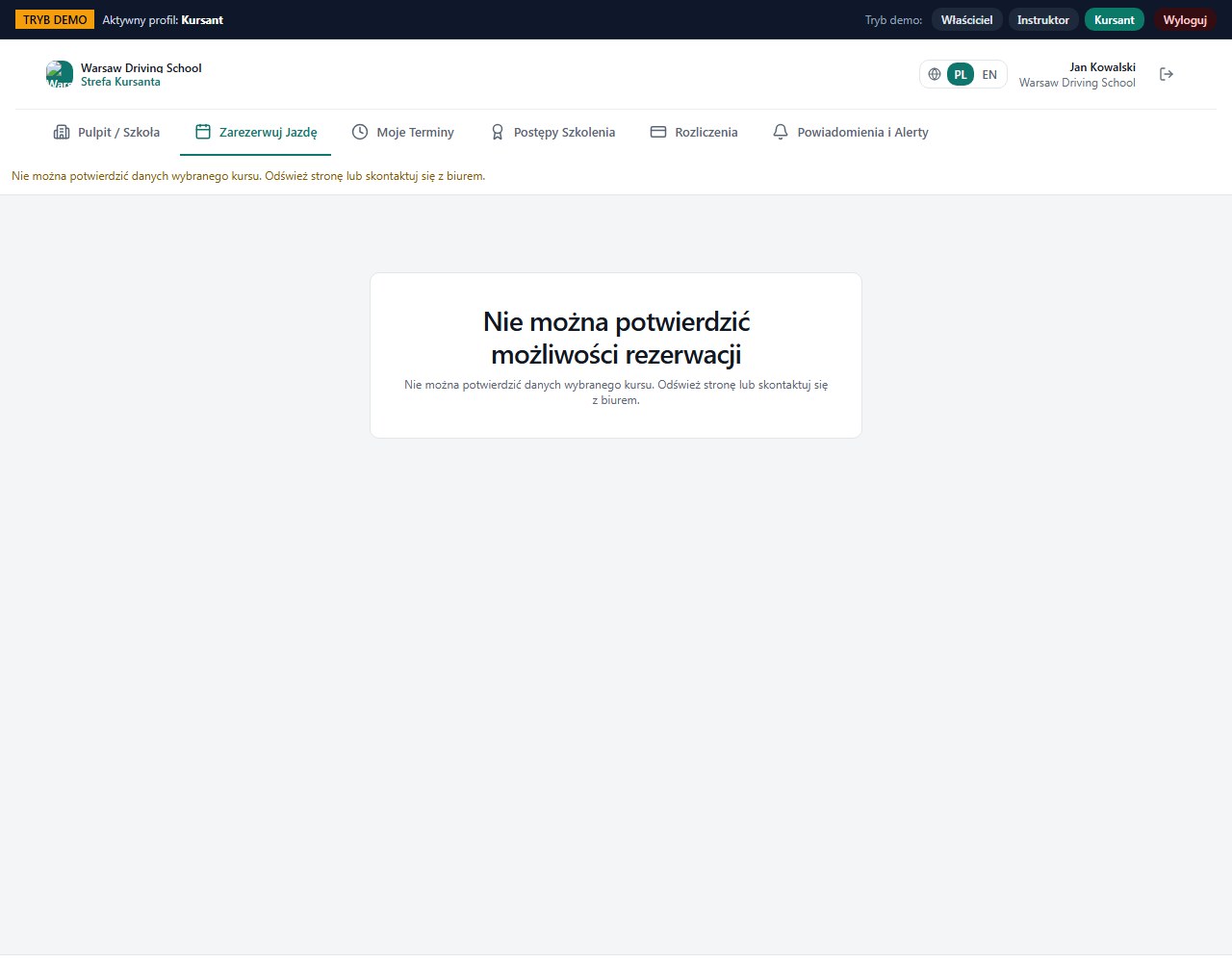
Read the blocking message
Cannot confirm selected course data or missing practice eligibility requires the office to check course data. Repeated booking clicks cannot fix it.
Refresh and report specifically
After refresh compare the result. If the issue remains, give the office the date of the missing lesson and the message. For a technical issue create a support ticket.
What to enter and what it means
- No free slots
- Check filters, slot publishing and course eligibility.
- Lesson disappeared
- Check school decision, cancellation, reschedule and selected course.
- Progress: undetermined / needs verification
- This does not automatically mean zero hours. Actual minutes or course linkage may be missing.
How to verify it worked
You know whether you need to adjust filters, ask the office to correct data or submit a technical ticket, and you have concrete diagnostic information.
Do not uninstall the app or disconnect the school as the first step. That may make account and pending-operation checks harder.
A screenshot with a warning may show a test state. It is not information about your own course or proof that the school's environment is down.