
Your own account accepted from an office invitation and linked to your instructor record. The panel runs in the browser; no separate instructor app is required.
Follow these steps
Open your own account
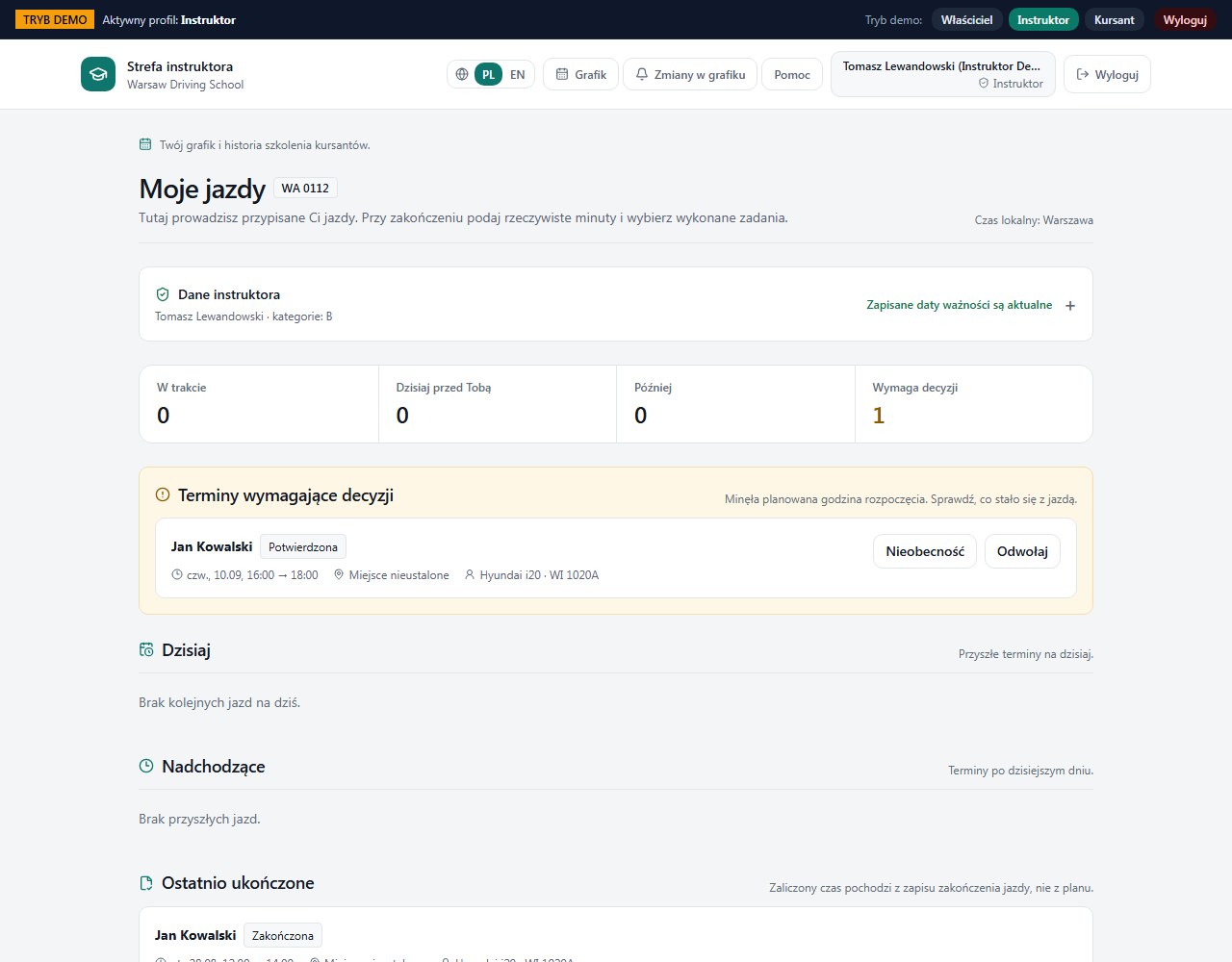
Use instructor sign-in with your own email and password. After sign-in you should see the Instructor area, your school and your name.
Find My lessons
Scroll to My lessons. Check Today, Upcoming and, if present, Times requiring a decision. No lessons today does not mean the next days are empty.
Read the lesson card
Compare date, time, student, vehicle and meeting point. If Pickup location not set is shown, agree the location with the office before the lesson.
Prepare for training
In Student training journal review earlier notes for the student you are authorised to teach. You do not need to sign in as the previous instructor.
Check schedule changes
Open Schedule changes. If an item requires confirmation, perform the separate confirmation action after reading it.
How to verify it worked
You have the current list of assigned lessons and all information needed to meet the student.
If you see the wrong school, another person, or an empty schedule despite an assignment, ask the office to verify the account and instructor record. Do not use a shared login.
A future lesson may not yet offer a Start action. Check the day and status before assuming the button is broken.