
The correct lesson that has not started yet. Do not correct completed training by creating another lesson.
Follow these steps
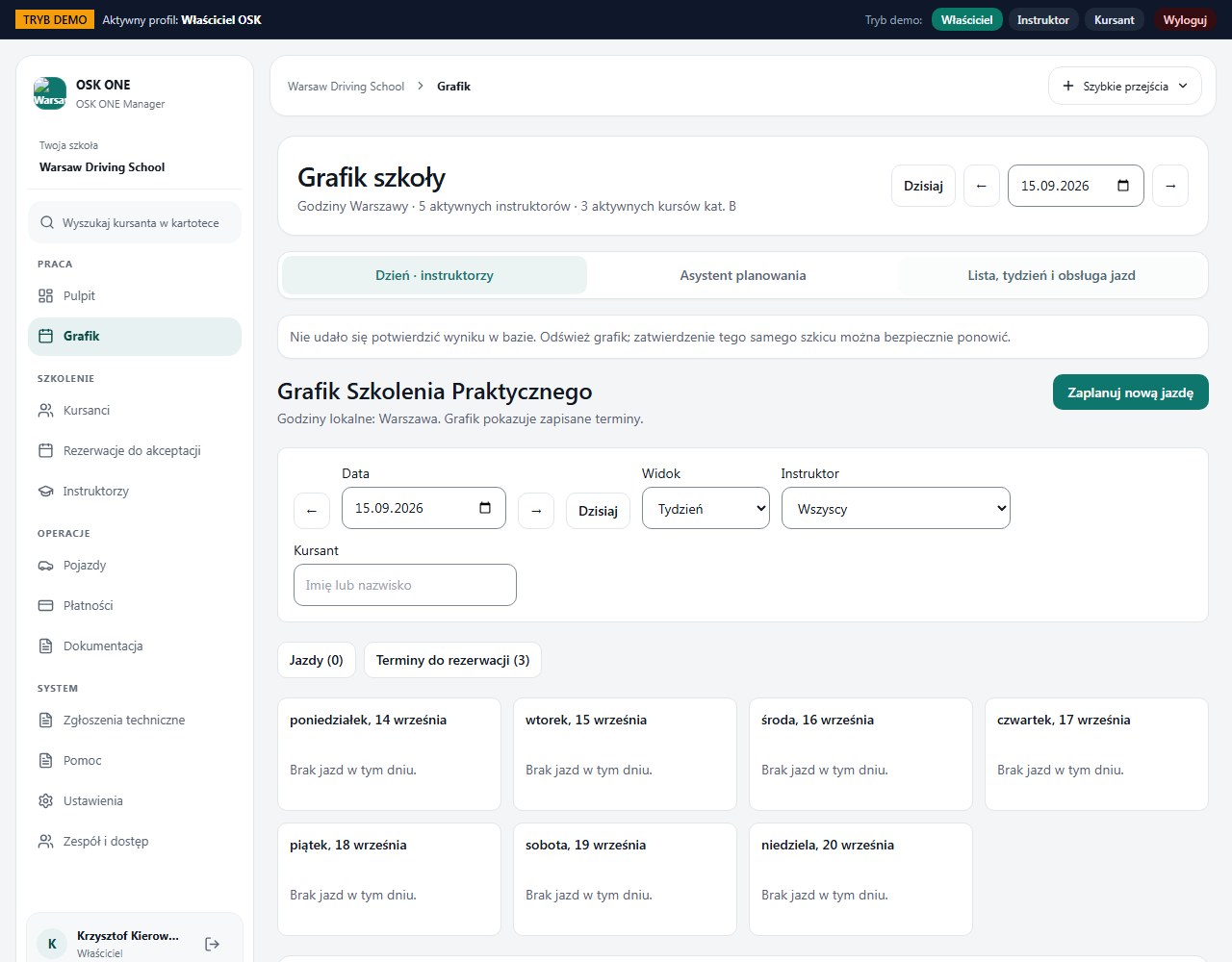
Find the correct lesson
Choose the day and locate the student. If needed use List, week and lesson operations plus person/date filters.
Verify what you are changing
Open the card and compare name, date/time, instructor and vehicle. Similar surnames are not enough to identify a lesson.
Reschedule: enter a new time
Select Reschedule lesson in day view or Reschedule in the list. Enter new start and end, save and verify the new time. Reschedule changes time only. Use the separate Change instructor or Change vehicle actions on the same lesson to change its resources.
Cancel: confirm the decision
Select Cancel and read the confirmation. If the list form asks for a reason, provide it. Do not mark a cancelled lesson as completed.
Verify result and communication
Refresh Schedule. The old time should not remain as a second active lesson. Check change communication with the instructor; the student should see the current status.
What to enter and what it means
- Reschedule
- Changes the time of the existing lesson and re-runs save validation.
- Cancel vs No-show
- Cancellation means the appointment is cancelled. No-show records that the student did not attend. These are different events.
How to verify it worked
There is one current lesson state and the change is recorded. You can identify the valid time to the student.
Do not promise an automatic refund. Cancellation and settlement rules are confirmed by the school.
After an interrupted save, read the current state first; do not alternate reschedule and cancel attempts blindly.