
A saved schedule for an active instructor and a suitable vehicle. Select a future date range.
Follow these steps
Open publishing
In Schedule open List, week and lesson operations, then Bookable slots. Select Publish availability.
Select resources and dates
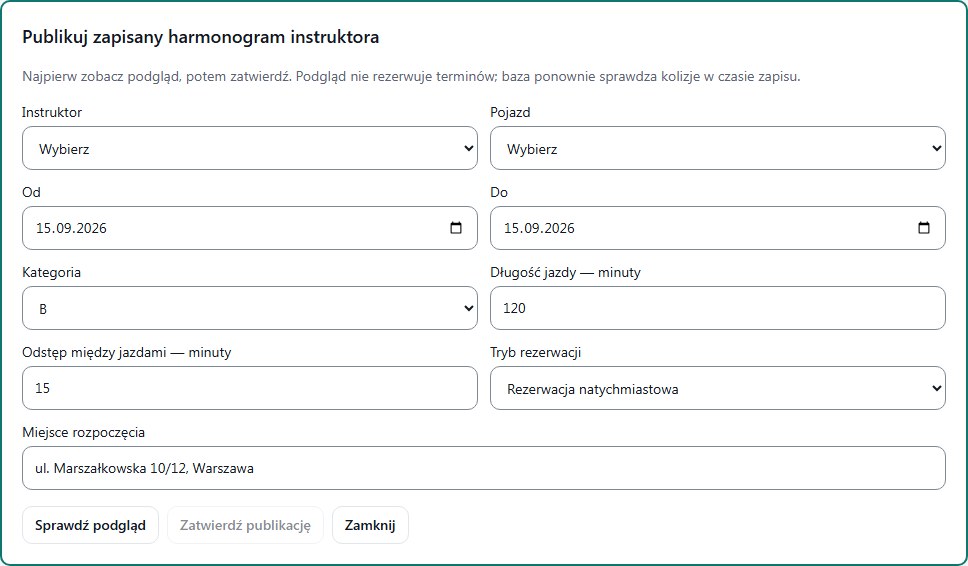
Choose Instructor, Vehicle, From and To dates and category B. Publishing uses the working hours previously saved for that instructor.
Set slot parameters
Enter lesson duration and buffer in minutes. Choose Instant booking or Requires office approval. Enter an unambiguous pickup location.
Review preview
Select Preview. Check the number of possible slots. Zero means there is nothing to publish for the chosen data. After changing parameters, generate the preview again.
Confirm publishing
Select Confirm publishing. Refresh the slot list and verify the date range. Check that an eligible student can see the published slots.
What to enter and what it means
- Lesson duration — minutes
- For example 120 means two clock hours; do not enter 2 in a minutes field.
- Buffer between lessons — minutes
- A planning break agreed by the school. It is not additional training time.
- Booking mode
- Instant or requiring an office decision. A 180-minute duration by itself does not define the whole booking policy.
- Pickup location
- A specific meeting point, for example the office entrance at a given address.
How to verify it worked
Published slots exist in the list. This does not mean any student has already booked a lesson.
Preview does not reserve resources. Between preview and save, another operation can occupy a slot.
If no new slots were published, refresh the preview. Do not invent availability to bypass a conflict.